


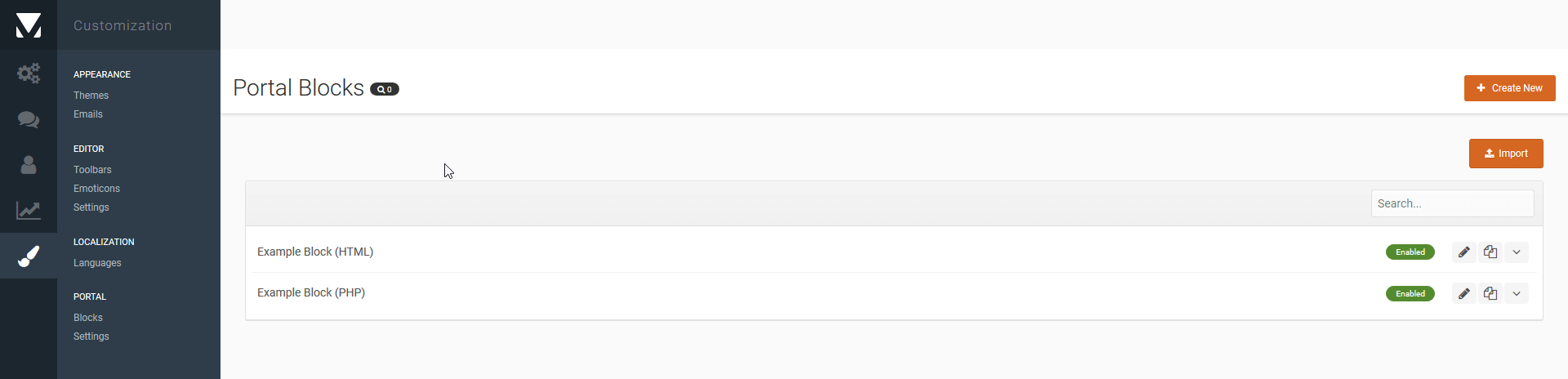
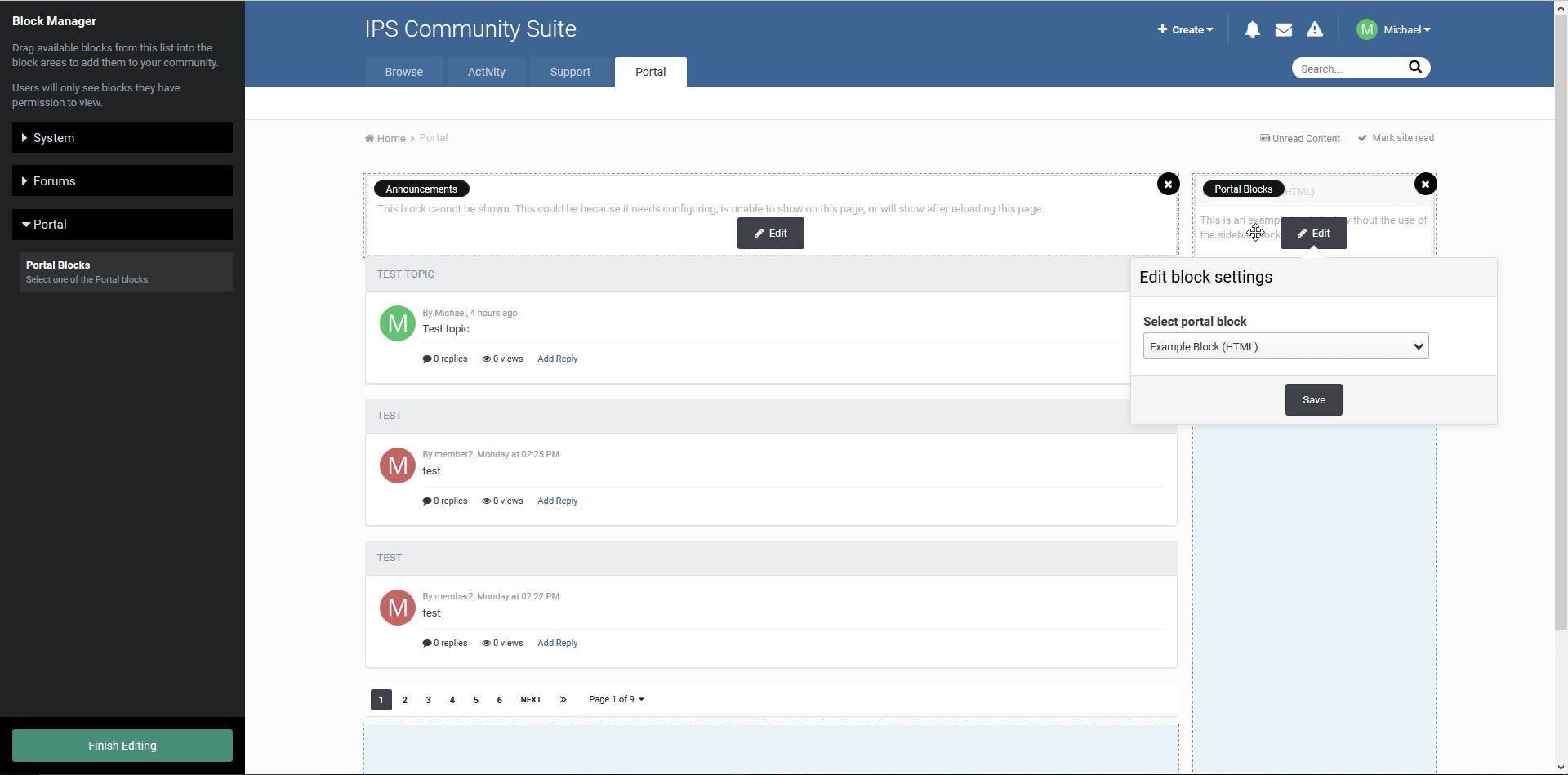
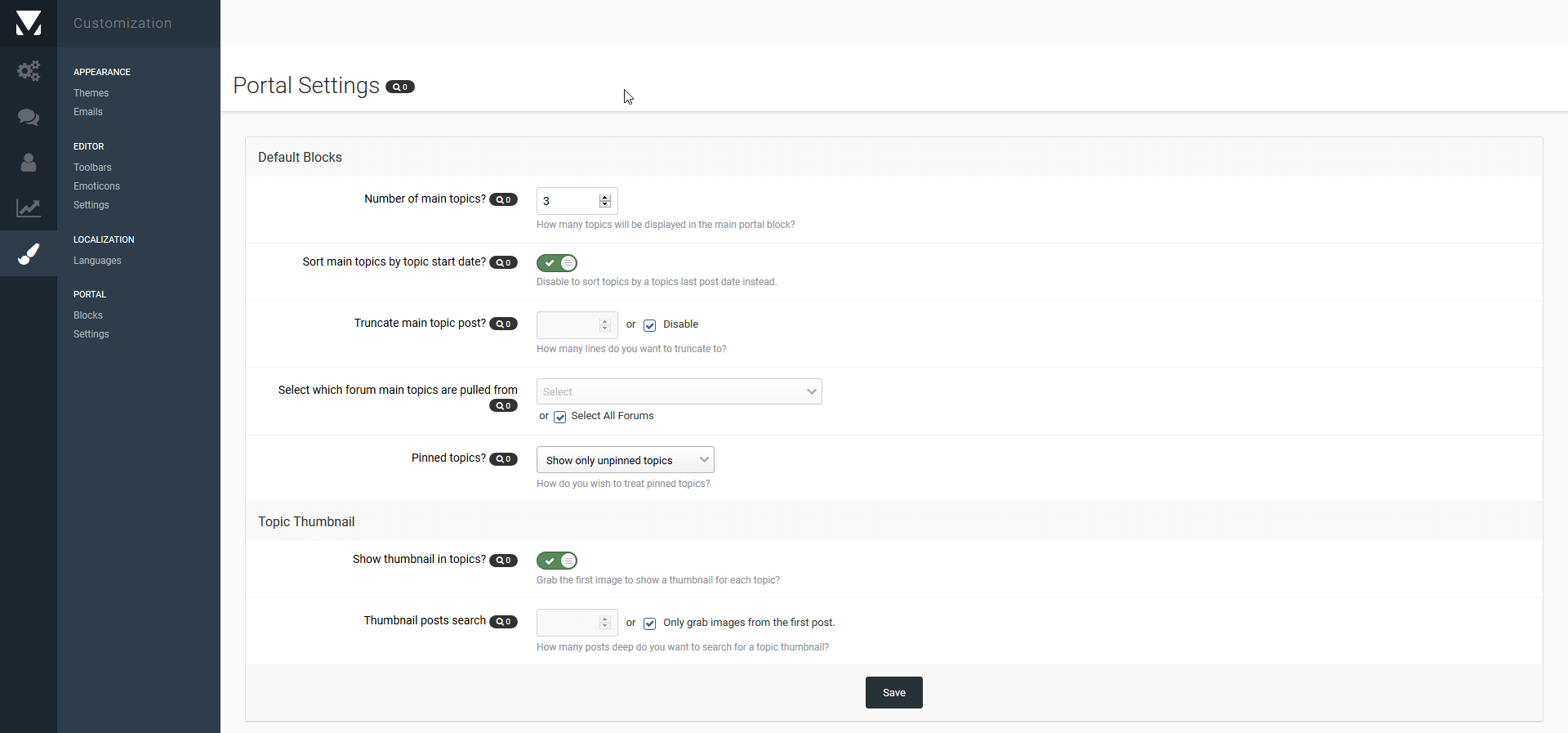
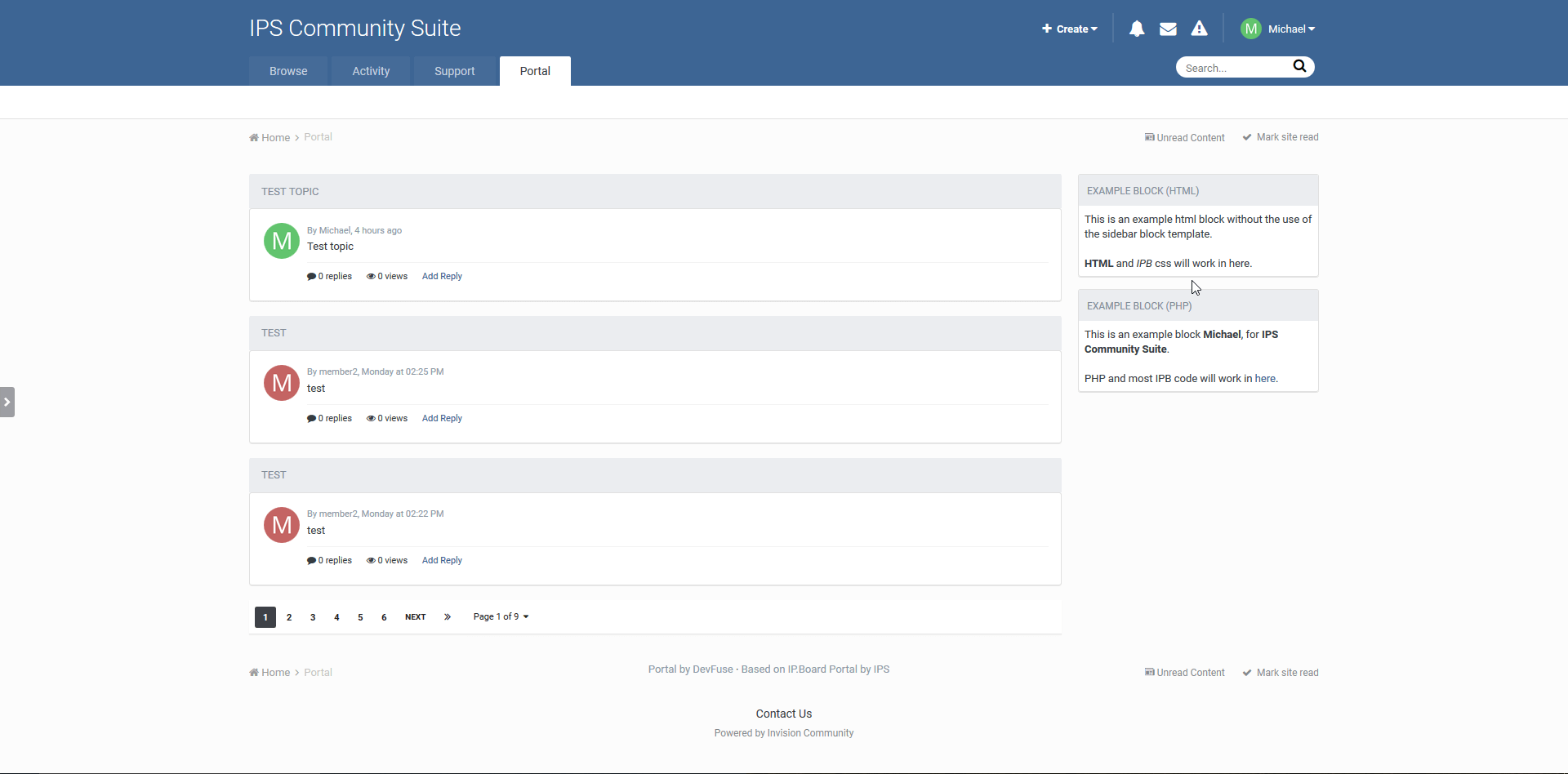
Новая версия приложения Портал.
Adds a Portal application to IP.Board. Based upon IP.Board Portal by IPS. Please be sure to direct all support questions or suggestions in the discussion topic rather then at IPS. The Portal is currently exclusive to the IPS Marketplace, I do not support this application elsewhere.
What's New in Version 1.7.0
Compatibility update for IP.Board 4.2.x.
If you use Advanced Tags & Prefixes and you want to integrate Icon on your Portal follow this step
1) Go to AdminCP and Theme
2) click on Edit HTML and CSS
3) Under template select Portal => Front => Browse and select topicRow
4) in line 4 you have this code
<h2 class='ipsType_sectionTitle ipsType_reset'><a href='{$topic->url()}' title='{lang="view_this_topic" sprintf="$topic->title"}' target='_top'>{$topic->title}</a></h2>
5) replace code with this code and save
{{if $topic->prefix()}} <h2 class='ipsType_sectionTitle ipsType_reset'>{template="prefix" group="global" app="core" params="$topic->prefix( TRUE ), $topic->prefix()"} <a href='{$topic->url()}' title='{lang="view_this_topic" sprintf="$topic->title"}' target='_top'>{$topic->title}</a></h2> {{else}} <h2 class='ipsType_sectionTitle ipsType_reset'><a href='{$topic->url()}' title='{lang="view_this_topic" sprintf="$topic->title"}' target='_top'>{$topic->title}</a></h2> {{endif}}


Вы сможете оставить отзыв только после скачивания файла.
Отзывов пока нет