


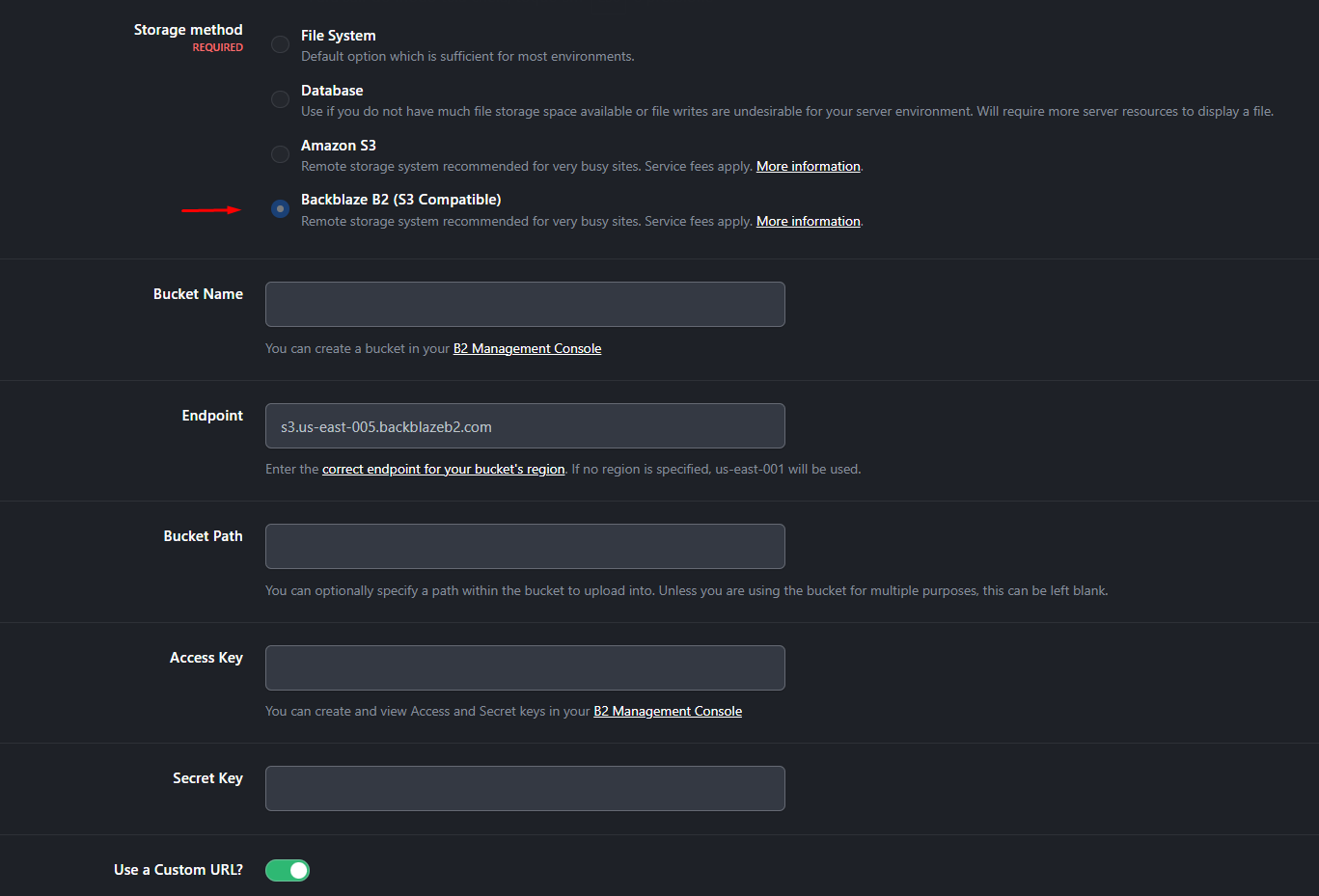
These files replace the original IC5 file, unlocking the Backblaze storage method that is hidden in the code. For some reason, the Invision team also blocked the creation of more than two storage methods, taking away the administrator's freedom of choice, this change increases that limit to 99.
Unblocks Backblaze
Increases the storage method limit from 2 to 99.
This feature was tested in versions:
5.0.17
5.0.18
A tip for those setting up a "Custom URL":
If you are a Cloudflare user, you can serve static files such as images and downloads at no cost.
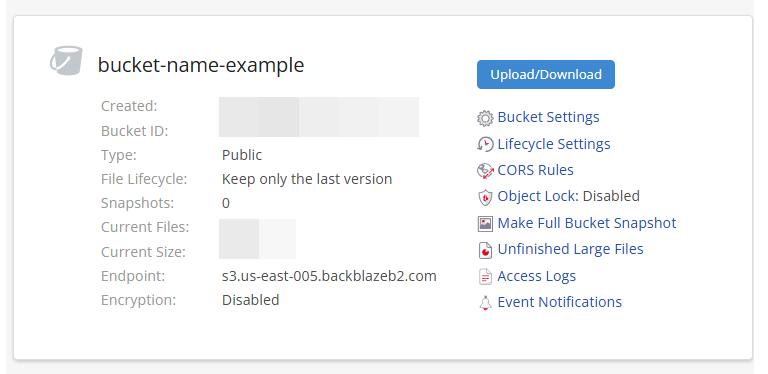
1- Find your endpoint, in my case, it is "s3.us-east-005.backblazeb2.com"
2- Create a subdomain on Cloudflare and configure a CNAME record pointing to "f005.backblazeb2.com". Note that "f005" corresponds to the "005" in endpoint. Change this part if yours is different.

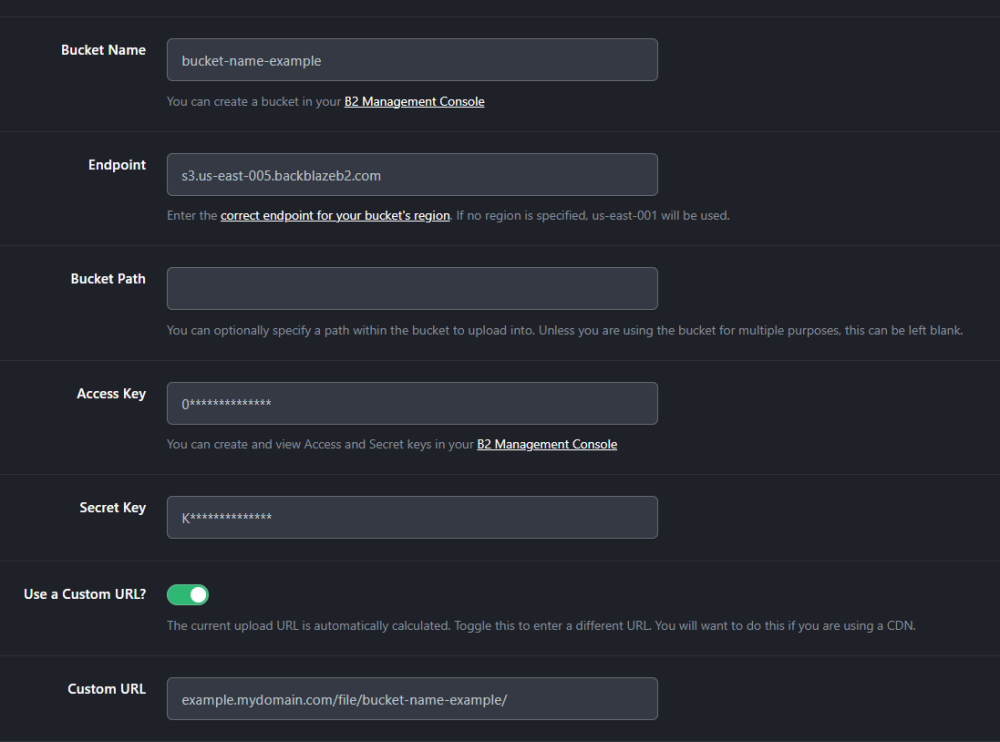
3- Configure the "Custom URL" as follows: example.mydomain.com/file/bucket-name-example/bucket-path/
example = the subdomain you set up on Cloudflare
mydomain.com = your domain
bucket-name-example = name of the bucket you created
bucket-path = If you have defined a "Bucket Path", otherwise, delete that part.
Edited by Murid
Новое в версии 07/04/26 19:08
Выпущена
Изменения не указаны
Вы сможете оставить отзыв только после скачивания файла.
Отзывов пока нет